Watch Champions League 2026 on Vikings IPTV: 5-Step Setup Guide
September 6, 2026 · 8 min read
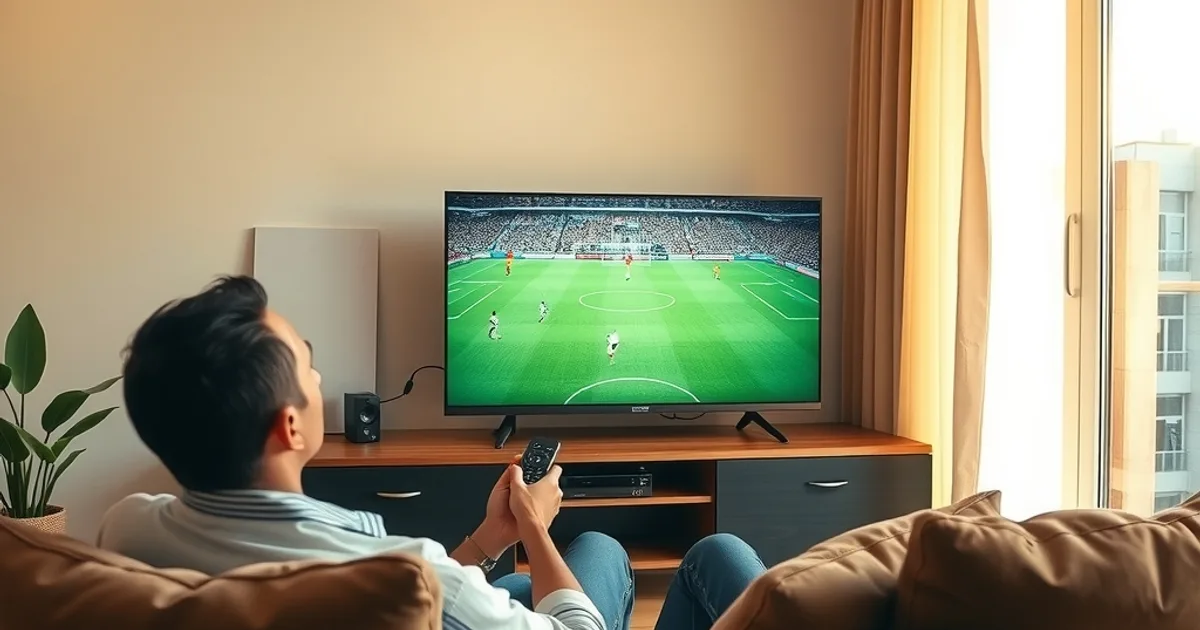
The Champions League league phase opens the week of September 8, 2026, and if you're reading this the night before kickoff with a half-set-up streaming box, you're not alone. Every September, the same wave of searches hits: "how to watch Champions League," "IPTV setup for beginners," "why is my stream buffering." Most guides answer one slice of that question — a device tutorial here, a troubleshooting post there — and leave you stitching the rest together while the match clock is already running.
This guide is different. It walks you from zero — no account, no app installed, no idea which device to use — through to watching your first match in 4K, including the peak-hour reliability tricks that matter most once millions of fans are streaming the same kickoff at once. If you already have an account and just need device-specific instructions, jump to Step 2. If you're starting from scratch, read straight through.
We'll also flag where Nordic viewers in particular tend to hit ISP-side slowdowns during marquee matches, and what to check before you assume the problem is Vikings IPTV rather than your connection.
Why Vikings IPTV for Champions League 2026-27
Champions League football is the single heaviest live-streaming event most subscribers watch all year — overlapping kickoffs, extra time, penalty shootouts, all demanding a stream that doesn't drop at the worst moment. Vikings IPTV is built around live sports delivery rather than a general entertainment catalog bolted on as an afterthought, which matters when the difference between a good and bad service shows up exactly during the 90 minutes you actually care about.
The bigger practical advantage for a first-timer is that everything — account, apps, support — lives under one system instead of being scattered across multiple logins and hardware ecosystems. That single-account approach is also what makes the rest of this guide possible: activate once, then choose whichever device fits your living room.
Not sure which device works best for Champions League nights?
What You Need: Plan, Internet Speed & Device Requirements
Before you activate anything, confirm three things. First, your plan: Vikings IPTV offers different subscription tiers, and if you specifically want 4K Champions League coverage, check that your chosen plan supports 4K streams before you buy — not all do. A dedicated comparison of plan tiers is linked below if you're unsure which one fits your setup.
Second, internet speed. Live sports in HD needs a stable, sustained connection — not just a fast one on paper. A connection that tests well at 9am can behave very differently at 9pm during a Champions League kickoff, when everyone on your street's ISP node is also streaming. Wired Ethernet to your streaming device beats Wi-Fi whenever it's an option, especially for 4K.
Third, your device. Vikings IPTV runs on Amazon Fire TV Stick, Roku, Apple TV 4K, and Android TV boxes. Each has a slightly different app installation path, which is why Step 2 below sends you to the right device-specific guide rather than trying to cover all four inline.
Step 1: Choose & Activate Your Vikings IPTV Subscription
Start by picking a plan. If your only goal right now is watching Champions League in the best quality your connection can handle, prioritize whichever tier includes 4K support — see /blog/vikings-iptv-standard-vs-premium-plans for a side-by-side breakdown of what separates the tiers, since some viewers overpay for a tier they don't need while others accidentally undershoot the one they wanted.
Once you've chosen, activation is handled through Vikings IPTV directly — reach out via WhatsApp for the fastest turnaround, since account setup on IPTV services is typically manual rather than instant self-checkout like a standard app store subscription. Keep your login credentials somewhere you'll actually find them on match night; you'll need them again in Step 3.
Step 2: Pick Your Device (Fire TV, Roku, Apple TV, Android Box)
If you already own a streaming device, use it — don't buy new hardware for this. Each device has its own dedicated Vikings IPTV setup guide with exact screenshots and menu paths, because the sideloading and app-store process differs meaningfully between them:
Fire TV Stick: /blog/vikings-iptv-firestick-setup — the most common choice, involves enabling apps from unknown sources. Roku: /blog/vikings-iptv-roku-setup-guide — a more locked-down platform with its own workaround. Apple TV 4K: /blog/vikings-iptv-apple-tv-4k-world-cup-2026 — our recommended pick specifically for 4K Champions League viewing given its hardware decoding headroom. Android TV Box: /blog/vikings-iptv-android-tv-box-4k-setup — most flexible for advanced users who want direct file access.
If you're deciding between them purely for Champions League in 4K, Apple TV 4K and a mid-to-high-end Android box tend to handle sustained high-bitrate streams most predictably; Fire TV Stick (non-4K models) and older Roku units are the most likely to struggle once a match goes to extra time and your device has been running hot for two hours straight.
Step 3: Install & Log In on Your Device
Follow your device's dedicated guide from Step 2 for the exact installation path — the process differs enough between platforms that a generic walkthrough here would either be too vague to follow or wrong for your specific device. In every case, the end state is the same: an app icon on your home screen and a login prompt asking for the credentials from Step 1.
If your login fails on the first attempt, double-check for autocorrect or autocapitalization on your remote's on-screen keyboard — it's the single most common first-timer error, not a broken account. If it still fails after a careful re-entry, that's the moment to contact support rather than repeatedly retrying the same input.
Step 4: Pre-Match Setup — Optimize for Peak Hours
This is the step most first-timer guides skip entirely, and it's the one that actually determines whether your Champions League night goes smoothly. Do it at least 30 minutes before kickoff, not during it. Close other apps and devices competing for bandwidth in your home — a 4K stream sharing a router with someone else's video call or a background cloud backup is a common, invisible cause of mid-match stuttering.
If you're on Wi-Fi, move the streaming device closer to the router or switch to Ethernet for the night. Restart the streaming device itself (not just the app) — a device that's been idle for days with background processes accumulated performs noticeably worse than one freshly rebooted.
Nordic subscribers specifically should be aware that some ISPs apply traffic shaping during high-demand streaming windows that has nothing to do with Vikings IPTV's servers. If you suspect this is happening on your line, /blog/detect-isp-throttling-iptv-nordic-vpn-test walks through how to test for it before match night rather than during it.
Step 5: Watch Your First Match — Troubleshooting Quick-Fix
Load the app 10-15 minutes before kickoff, not at the whistle — this gives you a buffer to catch and fix any issue before you're actually missing play. If the stream loads but looks soft or pixelated, check the in-app quality setting; some apps default to a lower bitrate and need 4K or Auto selected manually.
If the app is slow to load channels at all, that's usually a server-load moment right at kickoff when everyone connects simultaneously — give it 60 seconds and try again rather than repeatedly force-closing the app, which resets your connection each time and can make the wait longer, not shorter.
Ready to activate before the next kickoff and stop missing the opening minutes?
What to Do If Buffering Starts During Live Play
Buffering mid-match is the scenario every fan dreads, and it's also the most fixable if you know the order of operations. First, pause for 5-10 seconds to let the buffer rebuild rather than repeatedly skipping forward, which restarts the buffering cycle each time. Second, check whether the issue is isolated to Vikings IPTV or affects all internet activity on your network — if a browser page also loads slowly right now, the bottleneck is your connection, not the stream.
For a full breakdown of the specific fixes that work during live, high-traffic matches — including router-level adjustments and when switching devices actually helps versus wastes time — see /blog/champions-league-buffering-fix-peak-hours-vikings-iptv. And if this is genuinely your very first time setting anything up and you want the full walkthrough in one place, /how-to-start-vikings-iptv-streaming-first-timer covers the broader first-timer journey beyond just Champions League.
Related guides referenced in this article: /blog/vikings-iptv-firestick-setup, /blog/vikings-iptv-roku-setup-guide, /blog/vikings-iptv-apple-tv-4k-world-cup-2026, /blog/vikings-iptv-android-tv-box-4k-setup, /blog/champions-league-buffering-fix-peak-hours-vikings-iptv, /blog/detect-isp-throttling-iptv-nordic-vpn-test, /blog/vikings-iptv-standard-vs-premium-plans, /how-to-start-vikings-iptv-streaming-first-timer.
Frequently asked questions
Do I need a 4K-capable device to watch Champions League in 4K on Vikings IPTV?
Yes — both your plan and your device need to support 4K. Apple TV 4K and newer Android TV boxes are the most consistent for sustained 4K sports streams; check /blog/vikings-iptv-standard-vs-premium-plans to confirm your plan tier includes 4K before assuming your device is the limiting factor.
How long does Vikings IPTV activation take before I can start streaming?
Activation is handled directly through Vikings IPTV support, typically via WhatsApp. Reach out with plenty of time before kickoff rather than an hour beforehand, since manual account setup can take a little while depending on demand.
Why does my stream buffer more during Champions League nights than other times?
Peak-hour demand is real — millions of viewers connecting for the same kickoff strains both streaming infrastructure and, in some cases, your ISP's local network. Doing the pre-match optimization in Step 4 (closing competing apps, using Ethernet, rebooting your device) meaningfully reduces this.
Is it my ISP or Vikings IPTV when buffering happens?
Test by loading an unrelated website or video at the same moment. If everything on your network is slow, it's your connection, not the stream. /blog/detect-isp-throttling-iptv-nordic-vpn-test explains how to test specifically for ISP throttling.
Which device should a complete first-timer choose?
If you don't already own a streaming device, Fire TV Stick is the easiest entry point for most people, while Apple TV 4K is the stronger pick if 4K Champions League quality is your priority from day one. See the device guides linked in Step 2 for exact setup steps.
Can I switch devices mid-season without losing my subscription?
Yes — your Vikings IPTV login isn't tied to a single device. You can install the app on a new device using the same credentials from Step 1 at any point in the season.
Read next: the pricing page or the FAQ.