Hardware Decoding: Fix 4K IPTV Buffering on Nordic Sports
August 17, 2026 · 9 min read
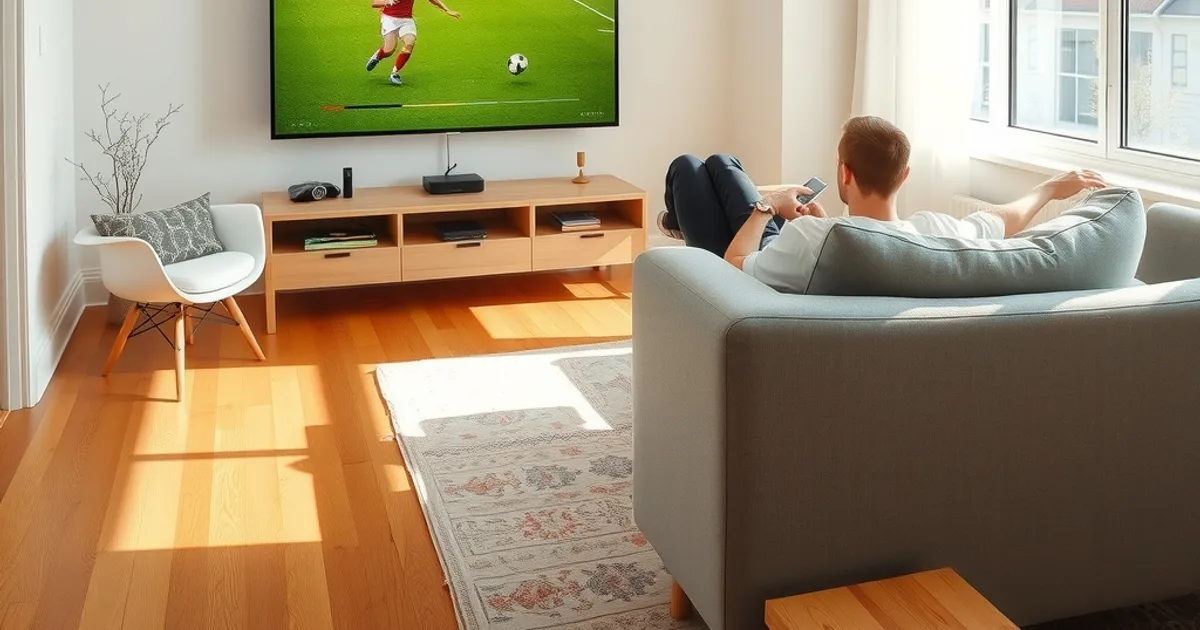
Late August into September is when Nordic football stops being background noise and becomes appointment viewing. Allsvenskan is fighting for the title, Eliteserien and Veikkausliiga are in their run-in, and the Champions League group stage kicks back off — all in 4K, all compressed with the same codec that quietly wrecks more streams than any network problem ever does. If your picture is sharp for ten seconds and then freezes on a corner kick, the instinct is to blame your ISP or your IPTV provider. Most of the time, neither is guilty.
The real culprit is how your player app is decoding the video. 4K IPTV streams are almost always encoded in H.265 (HEVC) to keep file sizes and bandwidth reasonable. Decoding H.265 in real time is a heavy computational job, and by default a lot of player apps — and a lot of devices — try to do that job on the general-purpose processor instead of the dedicated video chip built for exactly this task. That mismatch is what causes the stutter, the pixelation on fast motion, and the buffering wheel that shows up right when the ball is in the box.
This guide explains what hardware decoding actually is, why H.265 makes it non-negotiable for 4K sports, how to check whether your device supports it, and the exact steps to switch it on in TiviMate, IPTV Smarters Pro, and GSE Smart IPTV. We'll also cover the player settings competitors never mention — buffer size, cache, and thread count — and how to confirm your bandwidth isn't the actual problem before you go blaming the wrong thing again.
Why Your 4K Nordic Football Buffers: The H.265 Codec Problem
A 4K broadcast carries roughly four times the pixel data of 1080p. To make that stream small enough to travel over the internet in real time, IPTV providers encode it with H.265 (also called HEVC), a codec that compresses video far more efficiently than the older H.264 standard used for most HD content. The trade-off is that H.265 is mathematically much more demanding to decompress — every frame requires more processing steps than H.264 did.
That demand is invisible until it isn't. During a slow build-up in midfield, your device keeps up fine. The moment the game opens up — a fast break, a corner, a crowd shot with lots of motion — the decoder has to process far more visual information per frame, and if it's relying on the device's general CPU instead of dedicated video-decoding hardware, it falls behind. The player app then has no choice but to pause and rebuild its buffer. That's the freeze you're seeing, and it has nothing to do with your subscription or the match feed itself.
This is also why the same stream can look perfect on one device and stutter constantly on another sitting on the identical Wi-Fi network. It's not a bandwidth story — it's a processing story. Two boxes pulling the exact same bitrate can have completely different outcomes depending on whether hardware decoding is switched on.
Not sure which decoding mode your device actually supports?
Hardware vs. Software Decoding: What's Happening Behind the Scenes
Every modern streaming device — an Android TV box, a Fire Stick, an Apple TV, a phone — has two ways to decode video. Software decoding uses the main processor (the CPU), the same chip that's also running the app's interface, handling network requests, and managing the rest of the operating system. It's flexible and works on almost any codec, but it's slow and power-hungry for something as complex as 4K H.265.
Hardware decoding uses a separate, purpose-built chip on the device — sometimes called a VPU (video processing unit) or a dedicated decoder block inside the SoC — that does nothing except turn compressed video data into pixels. It's built specifically for this job, so it's dramatically faster and more efficient than asking the general CPU to do it in software. On a device with proper hardware decoding engaged, a 4K H.265 stream that would peg a CPU at 100% software-decoding barely registers a blip.
The catch is that hardware decoding isn't always the default. Some IPTV player apps ship with software decoding turned on out of the box because it's more universally compatible across devices with weaker or older video chips — the app developers are playing it safe rather than assuming every user's hardware can handle acceleration. That safe default is precisely what's costing you smooth 4K playback during the matches you actually care about.
Does Your Device Support Hardware Decoding? Quick Check
Most hardware sold in the last five to six years supports H.265 hardware decoding at 4K, but not all of it does — and this is the step most guides skip entirely. Android TV boxes and sticks built on Amlogic S905X3, S905X4, or newer chipsets handle 4K HEVC natively. Fire TV Stick 4K and 4K Max, Apple TV HD and later, and any Android phone from the last four or five years also decode H.265 in hardware without issue.
Where people run into trouble: first-generation 4K boxes from 2017-2018, budget no-name Android boxes built on older Amlogic S905 or S905X chips (without the X3/X4 suffix), and very old Fire TV Sticks that were never rated for 4K in the first place. If you're on one of these, hardware decoding will either not be available as an option or will fail to actually offload the work, and no player setting will fix that — the fix there is a device upgrade, which is exactly what we cover in our guide to setting up an Android TV box for true 4K playback.
If you're watching on an Apple TV 4K, the hardware ceiling is a non-issue — every model decodes H.265 natively at full 4K resolution, so any buffering there is almost always a player-setting problem, not a hardware one. We go deeper on getting the most out of that specific setup, including for live tournament coverage, in our Apple TV 4K guide for the 2026 World Cup.
Enable Hardware Decoding in TiviMate (Step-by-Step)
TiviMate is the most popular player for Android-based boxes, and it defaults to a decoding mode that isn't always the fastest available. To check and change it: open TiviMate, go to Settings, then Playback. Look for the option labeled Video Decoder — depending on your TiviMate version this may read Codec or Renderer instead.
You'll typically see two or three choices: Hardware, Software, and sometimes Hardware+ or Auto. Select Hardware. If your device's chip properly supports H.265 acceleration, you'll notice CPU usage drop immediately if you check it in a system monitor app, and 4K channels that used to stutter on camera cuts will hold steady through fast motion.
If Hardware mode causes the picture to freeze completely or the app to crash on certain 4K channels, that's a sign your specific chipset has a driver quirk with that codec profile — try Hardware+ if it's listed, or fall back to Auto and let TiviMate detect the best mode itself channel by channel. This is uncommon on chipsets from 2020 onward but does happen on some off-brand boxes.
Enable Hardware Decoding in IPTV Smarters Pro
IPTV Smarters Pro hides this setting in a slightly different place. From the home screen, open Settings (usually a gear icon), then look for Player Settings or General Settings depending on your platform version. On Android and Android TV builds, you'll find a toggle or dropdown labeled Hardware Decoding or HW Decode — make sure it's switched on.
On the Fire TV version specifically, this option sometimes sits under Playback rather than General — if you don't see it immediately, check both menus before assuming your build doesn't support it. Once enabled, back out and reload a 4K channel to confirm the setting has taken effect; some versions of Smarters Pro require a full app restart, not just a menu exit, for the decoder change to apply.
If Smarters Pro still stutters on 4K after switching to hardware decoding and you've confirmed your device supports H.265 acceleration, the next place to look isn't the codec setting at all — it's the buffer and cache configuration covered further down, which matters just as much for sustained match-length viewing.
Enable Hardware Decoding in GSE Smart IPTV for Apple Devices
GSE Smart IPTV is one of the few players with a genuinely capable iOS and Apple TV client, which matters because Apple's ecosystem handles decoding differently from Android. Open GSE, tap the menu icon, go to Settings, then Player Settings. Look for Decode Mode — the options are usually Hardware Decode and Soft Decode.
On Apple TV and modern iPhones and iPads, Hardware Decode should always be selected for 4K content — Apple's video chips are built for exactly this and there's essentially no downside. If you notice audio and video drifting out of sync after switching modes, toggle back and forth once more; this is a known GSE quirk on certain tvOS versions that a second toggle usually clears.
One thing worth knowing about the Apple side specifically: because every current Apple TV model decodes H.265 in hardware regardless of app settings in many playback contexts, GSE users on Apple TV who are still buffering after confirming hardware decode is active should treat that as a strong signal the bottleneck is buffer size or actual bandwidth, not the codec — both of which are covered next.
Other Critical Player Settings: Buffer Size, Cache, and Thread Count
Hardware decoding fixes the processing bottleneck, but it doesn't fix a buffer that's too small to absorb normal network jitter during a 90-minute match. In TiviMate, go to Settings > Playback > Buffering and increase the buffer size — a common starting point for 4K sports is somewhere in the 5-8 second range rather than the 1-2 second default some installs ship with. A slightly larger buffer costs you a fraction of a second at channel change but makes mid-match freezes far less likely.
Cache settings matter too, particularly on Smarters Pro and GSE, where a small on-disk cache combined with a weak buffer means any brief network hiccup instantly shows up as a stall. If your player exposes a cache size option, err on the larger side as long as your device has free storage — this is especially worth doing on boxes with only 8-16GB of internal storage where cache defaults are set conservatively.
Thread count is the setting almost nobody adjusts because almost no guide mentions it. Some players let you set how many CPU threads are allocated to decoding and rendering. On lower-end quad-core boxes, an app trying to use too many threads for other background tasks can starve the decoder even with hardware acceleration on — if your player exposes this option, keeping it at the default or one step above is usually safer than maxing it out, since over-allocating threads can create contention rather than resolve it.
Get a stream built for real 4K hardware decoding, not just advertised resolution.
Speed Test: Confirm Your ISP Bandwidth Supports 4K Sports
Once hardware decoding and buffer settings are sorted, it's worth ruling bandwidth out entirely rather than guessing. A stable 4K IPTV stream generally needs at least 25 Mbps of sustained, low-jitter throughput to the specific device you're watching on — not just your router's advertised plan speed, which is shared across every device in the house. Run a wired or close-range Wi-Fi speed test directly from the streaming device itself during peak evening hours, when match traffic and general household usage overlap.
If your measured speed is comfortably above 25 Mbps but you're still seeing drops specifically during high-motion sports scenes, that's further confirmation the issue was decoding all along, not delivery. If your speed test reveals inconsistent throughput — good in the afternoon, degraded at 8-9pm when everyone's home and streaming — that's a different problem entirely, and one some ISPs cause deliberately through traffic shaping rather than genuine congestion.
We've written a dedicated walkthrough on how to actually detect ISP throttling with a proper VPN test for Nordic connections, which is the right next step if bandwidth measurements point away from your device settings and toward your provider instead.
Frequently asked questions
How do I know if my buffering is a decoding problem or a bandwidth problem?
If buffering happens specifically during fast motion — corner kicks, replays, crowd shots — while calm build-up play streams fine, that's a strong decoding signal, since those moments demand the most processing. If buffering happens randomly regardless of what's on screen and gets worse in the evening when more people are online, that points toward bandwidth or ISP congestion instead.
Does switching to hardware decoding reduce video quality?
No. Hardware and software decoding produce the same output picture from the same stream — the difference is only in which chip does the processing and how efficiently. Hardware decoding should look identical or better, since it's less likely to drop frames under load.
My box doesn't show a hardware decoding option at all — what does that mean?
It usually means the app has detected that your device's chipset doesn't reliably support H.265 hardware acceleration and has hidden the option to avoid crashes. On older or budget boxes, this is a hardware ceiling rather than a settings problem, and the realistic fix is upgrading to a device with a current-generation chipset.
Will hardware decoding fix buffering on non-4K channels too?
It can help, but the effect is much smaller. Standard HD (1080p) streams are usually encoded in the less demanding H.264 codec, which most devices handle comfortably even in software mode. The impact of hardware decoding is most dramatic specifically on 4K H.265 content.
Why does this only seem to happen during big matches, not everyday viewing?
Sports broadcasts push far more motion and detail per frame than most other content — crowds, fast player movement, camera pans — which is exactly the kind of footage that's hardest to compress and hardest to decode in real time. A decoder that copes fine with a static newsreader shot can fall behind during a fast break, which is why the problem concentrates around live sports specifically.
Which player app has the best hardware decoding support right now?
TiviMate on Android TV boxes generally has the most mature and configurable decoding controls. For a broader comparison across platforms tailored to what actually matters for live Nordic sports — not just decoding but channel-switching speed and EPG handling — see our dedicated best IPTV player guide for Nordic sports in 2026.
Read next: the pricing page or the FAQ.